In this article:
- Signing PDF, XML and other documents with Signotaur
- PAdES, XAdES and CAdES signature formats
- Baseline, timestamped, long-term and archival signatures
- Document-signing certificates and trust
- Other changes in Signotaur 2.1
Until now, Signotaur has concentrated on code signing. Version 2.1 adds document signing, using the same client, server and key-custody model. It can sign PDFs, XML files and other data in the standard formats used by document viewers, business systems and archives. The private key remains on the Signotaur server, hardware token or HSM at all times.
Document signing is included in the Enterprise edition. Code-signing features remain available under the Standard licence.
PAdES, XAdES and CAdES
Different document types store signatures in different ways. Signotaur supports three ETSI Advanced Electronic Signature formats:
- PAdES is used for PDF files. The signature is added as an incremental update without rewriting the existing PDF content, and the file continues to open normally in PDF readers. Signotaur selects PAdES automatically for
.pdf files.
- XAdES is used for XML. By default, the signature is added inside the XML document alongside the content it covers. A detached signature can be written separately when the original XML must remain unchanged. Signotaur selects XAdES automatically for
.xml files.
- CAdES can sign other types of content, such as CSV or JSON data, images and archives. Pass
--format cades to create a detached .p7s signature beside the original file.
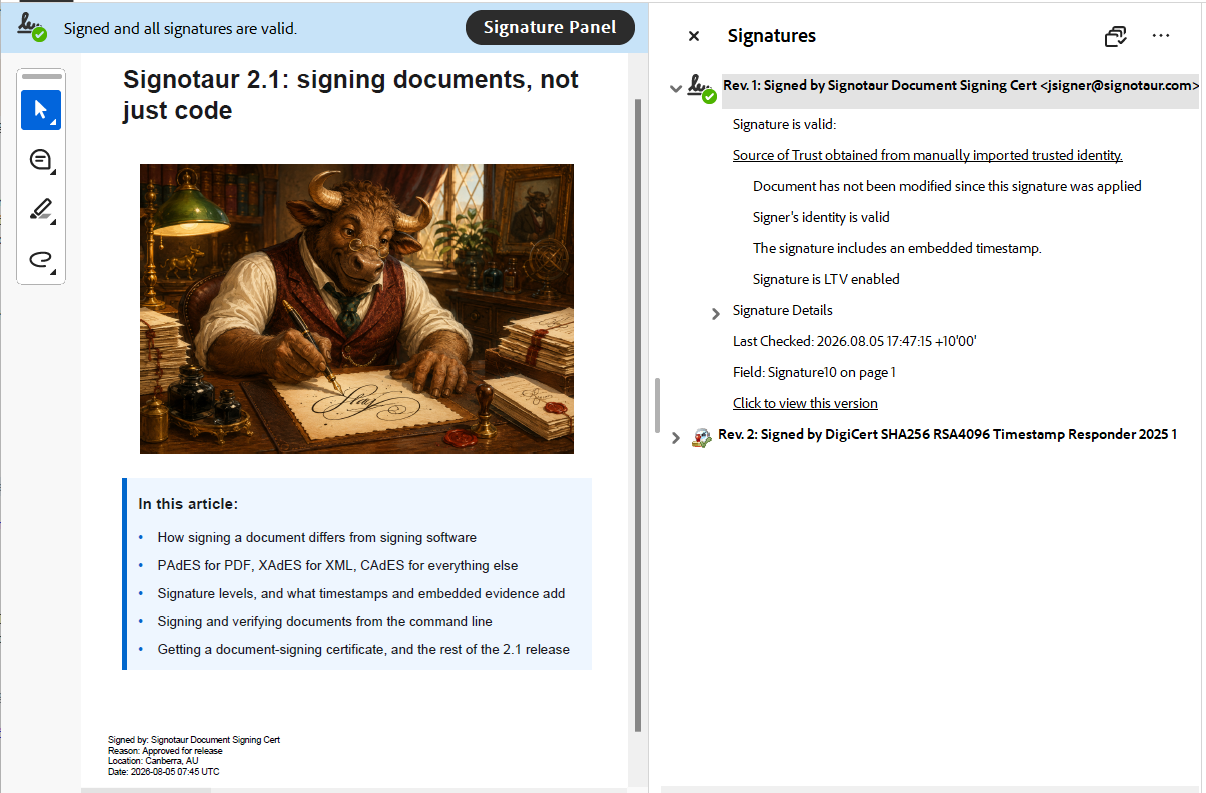
All three are established standards, so signatures created by Signotaur are not tied to Signotaur for verification. They can also be checked by compatible third-party software, including PDF readers that support PAdES.
Choosing a signature level
A plain signature proves who signed the content and that it has not changed. It does not prove when it was signed, or that the signing certificate was valid and unrevoked at that moment. Once the certificate expires, a verifier has little to go on. The --level option chooses how much supporting evidence to include. The same four levels are available across all three formats, and each includes everything from the levels below it:
baseline includes the signature and signing certificate. This is the default.timestamped adds an RFC 3161 timestamp from a timestamp authority. This establishes when the signature existed without relying on the signer's computer clock, allowing a verifier to see that it was created within the certificate's validity period.long-term also embeds the certificate chain and revocation evidence, using OCSP responses or certificate revocation lists (CRLs). This allows the evidence to be checked later without depending on the issuing CA's services still being available.archival adds another timestamp over the signature and its supporting evidence, recording that the complete package existed intact while its algorithms were still considered secure.
Levels above baseline require a timestamp authority, supplied with --timestamp-server. For long-term and archival signatures, Signotaur collects revocation evidence while signing. If it cannot retrieve that evidence, it identifies the affected certificate and continues with a warning. The signature remains valid, but may not be verifiable offline or after the certificate expires.
Signing a document
Document signing uses the existing sign command. For a PDF, the simplest form looks like this:
SignotaurTool.exe sign -a [APIKey] -s [SignServer] -t [Thumbprint] contract.pdf
To add a timestamp, select the timestamped level and provide a timestamp authority:
SignotaurTool.exe sign -a [APIKey] -s [SignServer] -t [Thumbprint] --level timestamped --tr http://timestamp.example.com contract.pdf
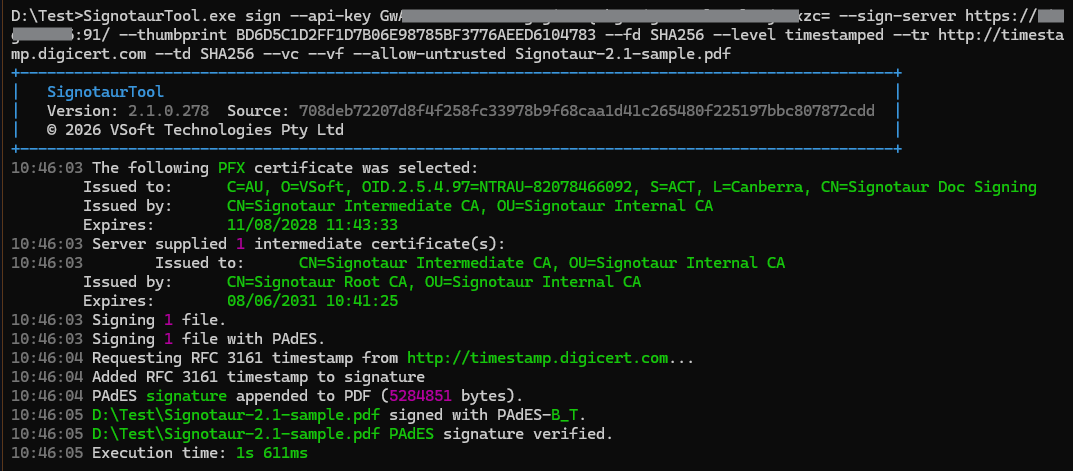
The signed PDF replaces the input file, so retain the original separately if it is still required.
PDF signatures are invisible by default: the signature is available through the reader's signature panel, but nothing is drawn on the page. Signotaur can instead add a visible signature containing a reason, location and optional logo. A password-protected PDF can also be signed: supply the password needed to open it and the file stays encrypted afterwards.
Verifying document signatures
The existing verify command recognises PAdES, XAdES and CAdES as well as the code-signing formats already supported by Signotaur:
SignotaurTool.exe verify contract.pdf invoice.xml invoice.csv.p7s
Signotaur detects the signature format, including an XML document accompanied by a detached signature, and reports whether each file's signature was verified.
Document-signing certificates
Code-signing and document-signing certificates are marked for different purposes. Signotaur checks that marking before a signing run begins, so a code-signing certificate cannot normally be used to sign a document, or vice versa.
An existing document-signing certificate can be registered from a PFX file, the Windows certificate store, or a hardware token or HSM accessed through PKCS#11. When a hardware device is used, the private key remains on that device and Signotaur asks it to perform the signing operation.
A document-signing certificate can also be issued through Signotaur's Internal CA or Microsoft AD CS. Select Document signing as the purpose in the Issue dialog. Certificates issued by the Internal CA carry the Microsoft, Adobe and RFC 9336 document-signing usages for compatibility with a broad range of verifiers.
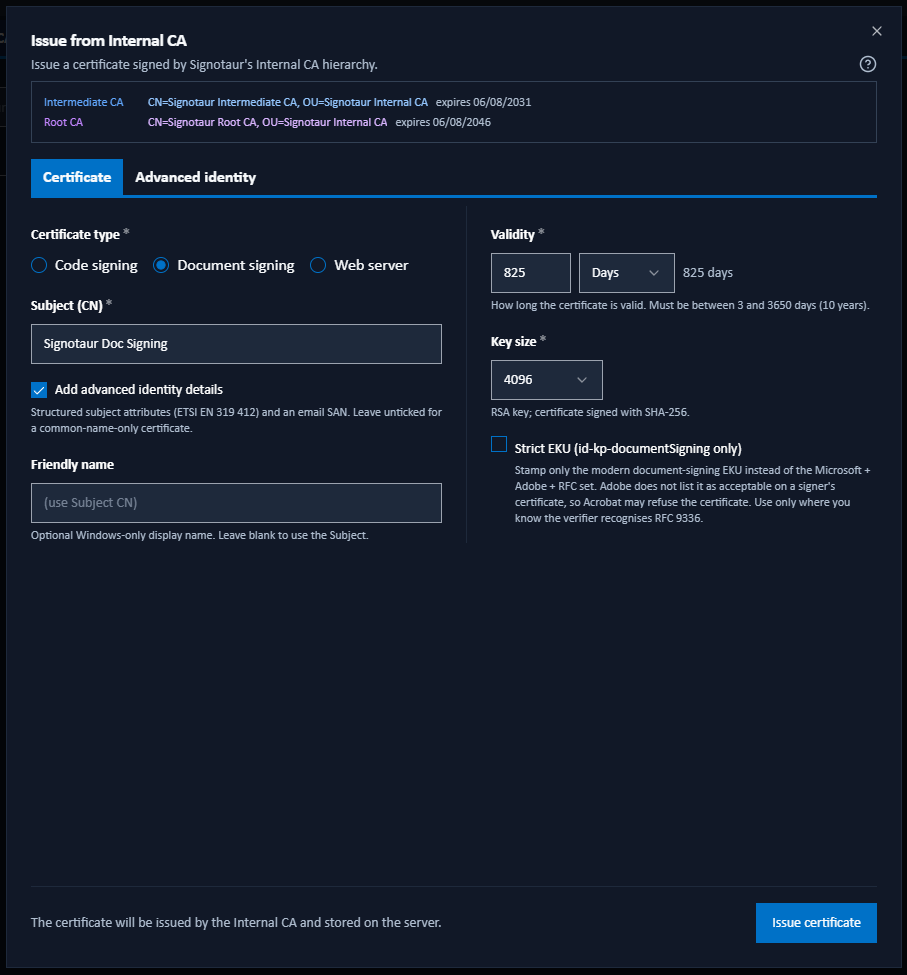
Certificates registered before upgrading to 2.1 remain recorded as code signing. Re-register any certificate that should also be available for document signing.
Certificate trust
Creating a valid signature does not automatically make its certificate trusted by every recipient. Trust is decided by the software or system performing the verification.
Adobe Acrobat, for example, trusts a signature when its certificate chains to a root that Acrobat trusts. That may be a public root on the Adobe Approved Trust List, or a private root installed by your organisation. Certificates issued by Signotaur's Internal CA are therefore well suited to documents used within an organisation that distributes and trusts its own root certificate. Documents sent outside that environment may need a certificate from a publicly trusted provider.
Trust and revocation are separate concerns. If signed documents leave your network, Signotaur 2.1 can publish the Internal CA's revocation list and issuer certificate to an external location. Recipients can then check whether a certificate has been revoked without needing access to your internal network. This does not make the Internal CA publicly trusted; recipients must still trust its root separately.
A trusted certificate is also not necessarily a qualified certificate in the eIDAS sense, a distinction covered in the documentation.
Using document signing in a pipeline
Because document signing uses the existing Signotaur client and API-key authentication, it can be added to the same release and automation processes as code signing. A release can sign its executables and accompanying PDF documentation, while another job might sign generated invoices or XML messages.
The build machine never receives the private key. Access remains controlled through Signotaur, and successful and failed signing requests are recorded in its audit trail.
Also in Signotaur 2.1
Document signing is the main addition, but version 2.1 also includes several changes to the Internal CA and certificate management:
- Validation Authority. The Internal CA can answer OCSP requests and publish CRLs and CA certificates, allowing the status of certificates it issues to be checked.
- Multiple Intermediate CAs. Intermediates can be scoped to web (TLS), code signing, document signing or all purposes, and managed independently.
- Certificate identities and policies. Issued certificates can carry structured subjects and identify the certificate policy under which they were issued.
- Certificate-management improvements. These include a Certificate authorities view, whole-chain downloads and renewal under the Intermediate CA that originally issued the certificate.
- Certificate-purpose enforcement. If a certificate is unsuitable for any artefact in a batch, the run fails before anything is signed. Pass
--warn-wrong-purpose to warn and sign anyway.
Summary
Signotaur 2.1 brings PDFs, XML and other documents into the same controlled signing process already used for software. It supports the standard PAdES, XAdES and CAdES formats, four levels of signing evidence, visible PDF signatures and certificates issued internally or registered from an existing source.
The private key remains in its controlled location, whether that is the Signotaur server, a hardware token or an HSM. Existing deployment and automation processes can use the same client and API-key model they already use for code signing.
Full details are available in the Signotaur 2.1 documentation, including Signing Documents, Document Signing Certificates and the sign command reference.
See the Signotaur 2.1 release announcement for the full changelog. To evaluate document signing on an existing installation, request a 14-day Enterprise trial licence from the Licences page in the server administration interface.