In this article:
- Why some files can't carry an embedded signature
- What a detached
.p7s signature is, and when Signotaur writes one
- Signing archives and disk images with no extra flags
- Extending detached signing to arbitrary files with
--detached
- Controlling the output path, and verifying with Signotaur or OpenSSL
Most of the file types Signotaur signs have somewhere to put the signature. A PE binary has a certificate table, an MSI has a digital-signature stream, a NuGet package has a reserved ZIP entry. You sign the file, the signature goes inside it, and the file still works exactly as before.
Plenty of files people need to sign have no standard embedded-signature format. A .zip, a .tar.gz, an .iso, a firmware blob, a plain .json manifest — several of these do have comment or metadata areas you could stash bytes in, but there's no agreed-upon signing format that other tools would recognise. You can wrap the whole file inside a signature structure, but that changes the file itself: your zip is no longer a zip, it's a CMS structure containing the zip.
The standard answer to this is a detached signature: sign the bytes, leave the original artifact untouched, and write the signature to a separate file. Signotaur now supports this directly, producing a standard CMS/PKCS#7 .p7s signature next to the file it signed.
CMS (Cryptographic Message Syntax, RFC 5652) is the IETF standard format for digitally signed data; PKCS#7 is the older format CMS was based on, and the names are still often used interchangeably. The .p7s extension is the conventional one for a detached CMS signature, which is why you'll see it throughout this post.
Archives and disk images: nothing to do
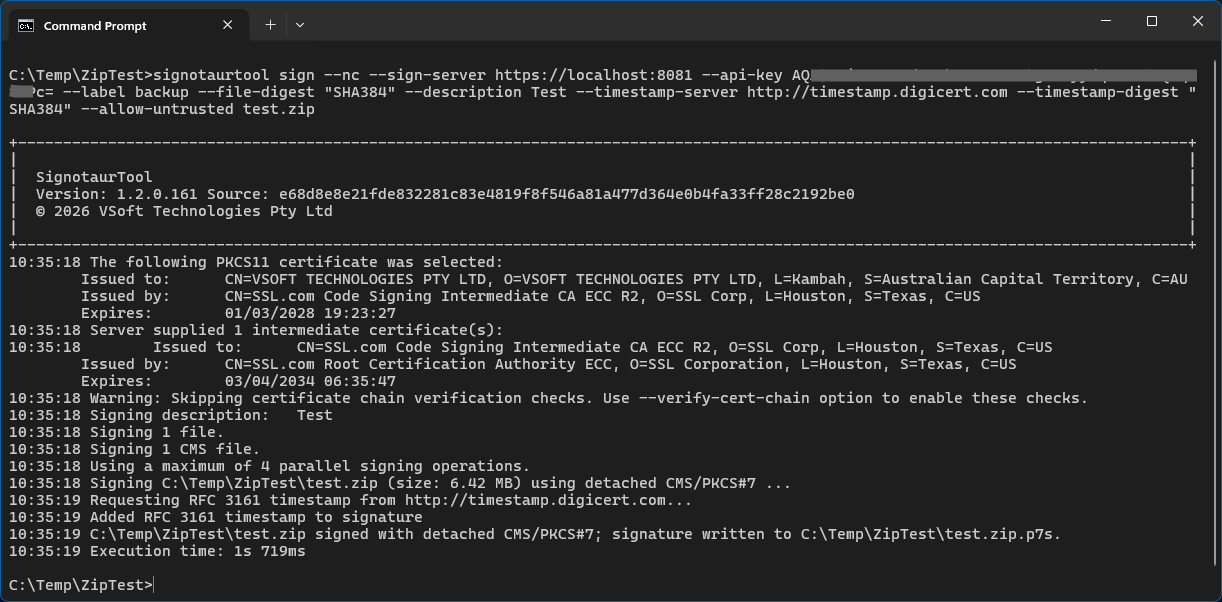
Signing a zip while keeping it usable is by far the most common case, so Signotaur automatically uses detached signatures for common archive and disk-image formats, with no extra flags:
SignotaurTool.exe sign -a [APIKey] -s [SignServer] -t [Thumbprint] release.zip
That signs release.zip and writes the signature to release.zip.p7s alongside it. release.zip itself is not touched — same bytes, same hash, still opens in any zip tool. The formats handled this way are .zip, .7z, .tar, .gz, .tgz, .bz2, .xz, .iso, .img, .vhd and .vhdx.
Files that do have a native embedded format — PE, MSI, NuGet, VSIX, RDP, ClickOnce manifests, .mobileconfig — keep using it. You don't have to think about which is which; the sign command routes each file by its type.
Other file types: --detached
To produce a detached signature for a file type that Signotaur would not otherwise sign as an embedded format — for example a .txt, a .json, an arbitrary binary — add --detached (--dt):
SignotaurTool.exe sign -a [APIKey] -s [SignServer] -t [Thumbprint] --detached manifest.json
This writes manifest.json.p7s and leaves manifest.json alone. The flag is ignored for file types that have their own embedded signature, so it's harmless to leave on in a script that signs a mix of things.
Choosing where the signature lands
By default the signature is written next to each signed file as [file].p7s. To put signatures somewhere else, use --signature-file (--sf). For a single file you can give an exact path:
SignotaurTool.exe sign release.zip --signature-file C:\sigs\release.sig ...
When signing many files at once, use placeholders so each output is distinct:
{name} — the file name including extension (archive.zip → archive.zip.p7s).{name-no-ext} — the file name without extension (archive.zip → archive.p7s).{rel-path} — the file path relative to the current directory, or to --base-directory if specified. This avoids collisions when different folders contain files with the same name.
SignotaurTool.exe sign src\**\*.zip --signature-file sigs\{rel-path}.p7s ...
Any directories in the output path are created for you. An exact (placeholder-free) path is only valid when signing a single file — otherwise every file would write to the same signature file.
Verifying
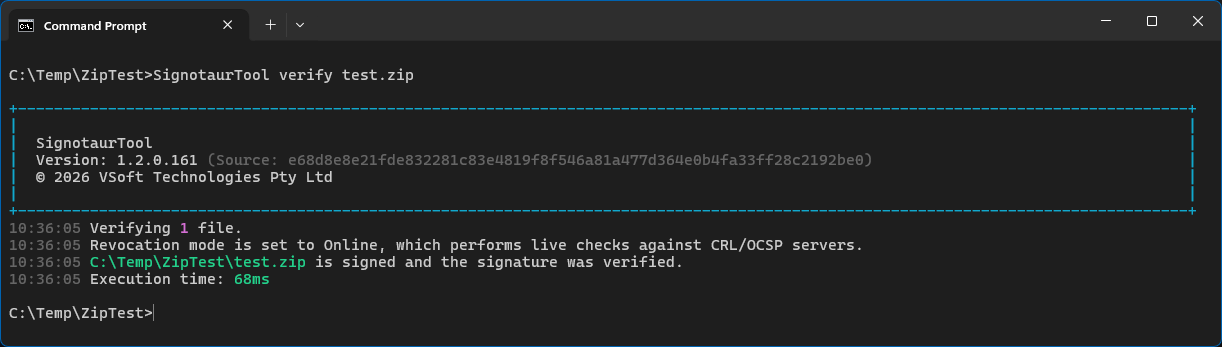
A .p7s file is a plain CMS/PKCS#7 SignedData structure, so it's not locked to Signotaur. Point verify at either the original or its .p7s signature and it auto-detects the pairing:
SignotaurTool.exe verify release.zip
And because it's standards-compliant, OpenSSL — or anything else that speaks CMS — can verify it too:
openssl cms -verify -binary -inform DER -in release.zip.p7s -content release.zip -CAfile root.pem -out NUL
That example assumes a signer certificate issued directly by the root in root.pem; in practice, use whichever CA bundle or certificate chain is appropriate for the signer certificate. (-out NUL just discards the recovered content so the zip isn't dumped to the console.)
If you only need an integrity check — confirm the signature matches the content, without deciding whether the signer is trusted — add -noverify. It skips chain validation, so no root.pem is required:
openssl cms -verify -noverify -binary -inform DER -in release.zip.p7s -content release.zip -out NUL
This confirms the bytes haven't changed since signing, but it does not establish that you trust the signer — for that, use the chain-validating form above.
RFC 3161 timestamping works on detached signatures the same as everywhere else — pass --tr (and optionally --st) and the timestamp is embedded into the .p7s.
Wrapping up
Detached signing extends Signotaur beyond formats with a built-in signature slot. Where a file has a native signing format, Signotaur continues to use it. Where it does not, Signotaur can write a clean .p7s signature alongside the untouched original.
The result is still standards-compliant CMS/PKCS#7, so consumers are not tied to Signotaur for verification. More to come, but this removes a "you can't sign that" answer we'd rather not give.
For the full option reference see the sign and verify command pages in the Signotaur documentation. As always, the private key never leaves your signing server — detached or embedded, only the digest is ever sent for signing.