In this article:
- What changed for signed
.rdp files in the April 2026 Windows update
- Why previously-working signatures now show an orange warning dialog
- The registry policy recipient machines need for no dialog at all
- How Signotaur signs
.rdp files without distributing the certificate
- Deploying the policy via Group Policy or PowerShell
If you push Remote Desktop shortcuts out to users, you probably already know about the April 2026 Windows cumulative update (KB5083769 on Windows 11, KB5082200 on Windows 10). If you don't, you might have found out the hard way — via a Monday-morning deluge of "is this a virus?" tickets from users who suddenly have a big orange warning on the RDP file that worked fine last week.
Signotaur 1.2.0.107 ships with .rdp file signing support. Here's what changed in Windows, why it matters, and what the new signing command actually does.
What Microsoft changed
The April cumulative addresses CVE-2026-26151. Two user-visible things came with it:
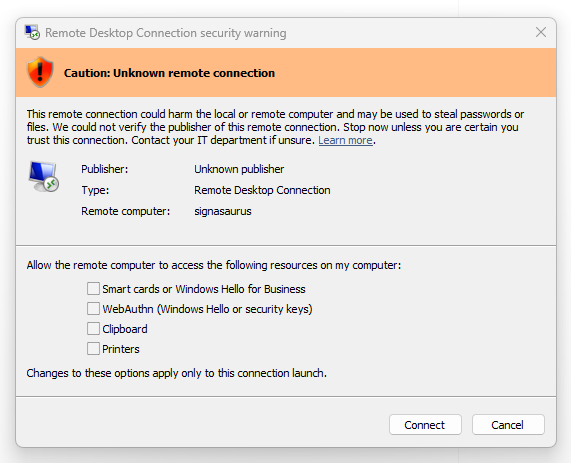
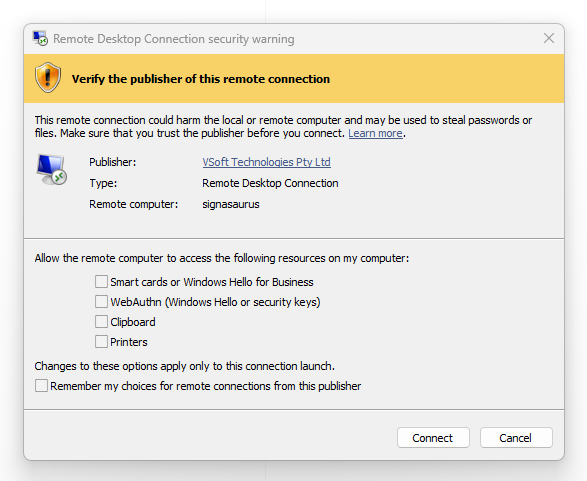
- The Remote Desktop Connection warning dialog was redesigned. It now lists every resource the connection can redirect (drives, printers, clipboard, USB, etc.) with individual checkboxes, and every box is off by default. Users have to opt in to each one on every connection, every time.
- The trust criteria for signed
.rdp files tightened. Pre-April, a file signed by an untrusted cert got a yellow "Verify the publisher" banner. Post-April, the same file gets an orange "Caution: Unknown remote connection" banner — visually indistinguishable from an unsigned file.
Here's what the new per-launch dialog looks like. For an unsigned file:
And for a file signed by a publisher Windows can verify:
Separately, the first time any user opens an .rdp file after installing the update, Windows shows a one-time educational dialog explaining what .rdp files are and why they can be dangerous:
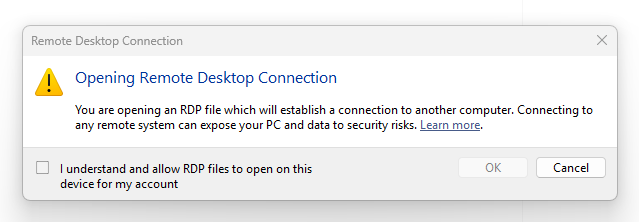
Once dismissed, it doesn't reappear for that account.
Discussion and lament: r/sysadmin: FYI: Microsoft RDP changes with April cumulative.
This is a genuinely good security change — the old dialog was vague and under-informed users about what was being shared with the remote host. It is also a rather annoying deployment change, because plenty of teams had rdpsign.exe-signed files quietly working for years, and now they don't.
Why people got caught out
The usual story goes like this: a team signed their .rdp file years ago with a self-signed or internal-CA certificate, shipped it to users, and it displayed a friendly yellow "Verify the publisher: Acme Corp" dialog that everyone clicked through. After April's update, the same file suddenly shows an orange "Unknown remote connection" dialog and support gets flooded. One representative example from the Reddit threads: a sysadmin describing exactly this.
The signatures on those files are still cryptographically valid. Windows is just stricter now about what counts as a "verified publisher" for RDP.
The actual recipe (no dialog at all)
Cutting through the noise, here's what recipient machines need for a signed .rdp file to open with no warning dialog at all:
- The signing certificate's chain must terminate in a root the client machine trusts. Commercial code-signing certs (DigiCert, Sectigo, etc.) chain to roots Windows already trusts. For an internal CA or self-signed cert, the root has to be imported into
Cert:\*\Root on each client.
- A Remote Desktop trust policy must be in place that whitelists your signing certificate's SHA-1 thumbprint. This lives at either
HKLM\SOFTWARE\Policies\Microsoft\Windows NT\Terminal Services (machine-wide, requires admin) or HKCU\SOFTWARE\Policies\Microsoft\Windows NT\Terminal Services (per-user, no admin required), and needs two values:
AllowSignedFiles — REG_DWORD, set to 1TrustedCertThumbprints — REG_SZ, the SHA-1 thumbprint of your signing cert, uppercase, no spaces (semicolon-separated if you have more than one)
A word of warning about one trap we hit: TrustedCertThumbprints is a whitelist on top of normal chain validation, not a replacement for it. Dropping a self-signed cert's thumbprint into the list without also importing the cert into a trusted root store does nothing. If you've tried this and wondered why it didn't work, that's why.
What Signotaur does when you sign a .rdp file
Unlike rdpsign.exe, Signotaur signs .rdp files against a remote server — the private key stays on the server (or an HSM it's connected to), so no admin workstation or automation host needs a local copy of the signing certificate. This is the main reason to use Signotaur for .rdp signing rather than running rdpsign.exe directly.
The mechanics otherwise match what you'd expect. The client reads the .rdp file, canonicalises the contents, sends only the digest to the server for signing, and writes the signed file back in place. The output is byte-equivalent to rdpsign.exe's — same canonical form, same 12-byte Microsoft wrapper, same detached CMS structure — so recipients see the same Windows Remote Desktop Connection dialog regardless of which tool produced the signature.
RFC 3161 timestamping is supported, and the timestamp is embedded into the CMS in the standard way. But there's a caveat that's easy to miss: mstsc.exe doesn't actually consult the timestamp when validating a .rdp signature — it only checks whether the signing certificate is currently valid at the moment the file is opened. The strongest indirect evidence for this is that Microsoft's own rdpsign.exe has no timestamping support at all — no /tr flag, no timestamp in its output.
The timestamp is still worth having: it's standards-compliant CMS so general-purpose tools can read the signing time, it provides a tamper-evident audit trail, and it future-proofs against any future change in mstsc's behaviour. In practice though, plan to re-sign distributed .rdp files when your signing certificate is renewed, the same way you would for an unsigned-but-distributed file.
Because the registry recipe above is easy to get wrong, Signotaur also prints the recipe for you after signing, pre-filled with the thumbprint of the certificate that just signed the file. It tells you whether the cert is self-signed (in which case you'll also need to deploy the cert itself to recipient trusted-root stores) or chained (in which case you may not).
If you're running sign interactively on Windows, it also offers to apply the policy to HKCU for the current user on the spot — no admin rights needed, no registry editor, no PowerShell snippet to copy-paste. This is mostly useful for confirming the signing works locally before you deploy the policy via GPO. In unattended runs, the prompt is automatically skipped, and you can pass --no-mstsc-guidance (--nmg) to suppress the whole lot if the log gets noisy.
An example
The sign command detects .rdp files automatically based on extension, so there's nothing special to type:
|
>
|
SignotaurTool.exe sign -a -s -t --tr http://timestamp.digicert.com --td SHA256 connect-to-prod.rdp
|
After a successful sign you'll see something along the lines of:
RDP signing guidance (Windows Remote Desktop Connection compatibility, post-KB5083769):

By default recipients will see a "Verify the publisher" or "Unknown publisher"
warning dialog when opening this signed file in Windows Remote Desktop Connection.
To eliminate the warning, each recipient machine needs:

1. The signing certificate's chain trusted on the machine.
   For commercial certificates chaining to a Windows-preinstalled root, no action
   is required; internal-CA certificates require the CA to be imported into each
   recipient's Trusted Root store.

2. The signing certificate's thumbprint added to the Remote Desktop trust-publisher
   policy:

   Value: AllowSignedFiles (REG_DWORD) = 1
   Value: TrustedCertThumbprints (REG_SZ) =

Apply AllowSignedFiles + TrustedCertThumbprints to your current user registry now?
Useful for testing this signed .rdp locally. [y/N]:
Answer y and it writes the values to your HKCU — open the file in Remote Desktop Connection, confirm there's no dialog, and you know the signing bit is working before you take the policy near a GPO.
Deploying the policy to the fleet
For anything beyond a couple of machines, Group Policy is the right tool — it's also how you set these same values without touching the registry by hand. In the Group Policy Management Editor:
- Computer (or User) Configuration → Administrative Templates → Windows Components → Remote Desktop Services → Remote Desktop Connection Client
- Allow .rdp files from valid publishers and user's default .rdp settings → Enabled
- Specify SHA1 thumbprints of certificates representing trusted .rdp publishers → Enabled, with your thumbprints in the list (uppercase, semicolon-separated if multiple)
Intune has equivalent settings under the Administrative Templates profile. If you're deploying to a smaller set of machines, or scripting it, a PowerShell snippet that does the per-user version (no admin needed) looks like this:
|
1
2
3
4
|
$p = 'HKCU:\SOFTWARE\Policies\Microsoft\Windows NT\Terminal Services'
New-Item -Path $p -Force | Out-Null
Set-ItemProperty -Path $p -Name AllowSignedFiles -Value 1 -Type DWord
Set-ItemProperty -Path $p -Name TrustedCertThumbprints -Value 'YOUR_THUMBPRINT_UPPERCASE' -Type String
|
Swap HKCU for HKLM for the machine-wide version (and run elevated). The thumbprint must be uppercase with no spaces; use a semicolon to join multiple thumbprints if you have more than one signing cert in rotation.
What you still can't do
A few things worth knowing up front so you don't hunt for them:
- The per-redirection checkboxes in the new dialog are not controlled by
AllowSignedFiles. Even with a properly trusted and whitelisted signature, users still see the redirection dialog on first use. There's a separate set of policies for which redirections are allowed on the server side; the client-side checkboxes are a user-consent UI rather than a trust decision.
- There's a temporary "revert to pre-April dialog" switch at
HKLM\Software\Policies\Microsoft\Windows NT\Terminal Services\Client\RedirectionWarningDialogVersion = 1. Don't rely on it — Microsoft has been explicit that it will be removed in a future update.
- Windows has no built-in
.rdp signature verifier. rdpsign.exe /v is "verbose", not "verify"; in practice the only verifier is Remote Desktop Connection opening the file. Signotaur's verify command will validate the signature and cert chain offline if you want a CI-friendly check.
If you'd rather not think about any of this
The short version: get a code-signing certificate from a public CA that chains to a Windows-preinstalled root, register it with your Signotaur server, sign your .rdp files as part of your distribution workflow, and push the AllowSignedFiles + TrustedCertThumbprints policy out via GPO. After that, signed .rdp files open with no dialog, and the next time Microsoft tightens the rules you've already done the trust-deployment work.
For command-line details and the full signing command reference see the Signotaur documentation. If you run into something specific — especially if you have an internal CA or a less-common PKCS#11 token in play — our support team is happy to help.